Nightingale Convenience
Second Life Gadgets and other Merchandise
Tip All Calculator HUD
No Math, All Fun
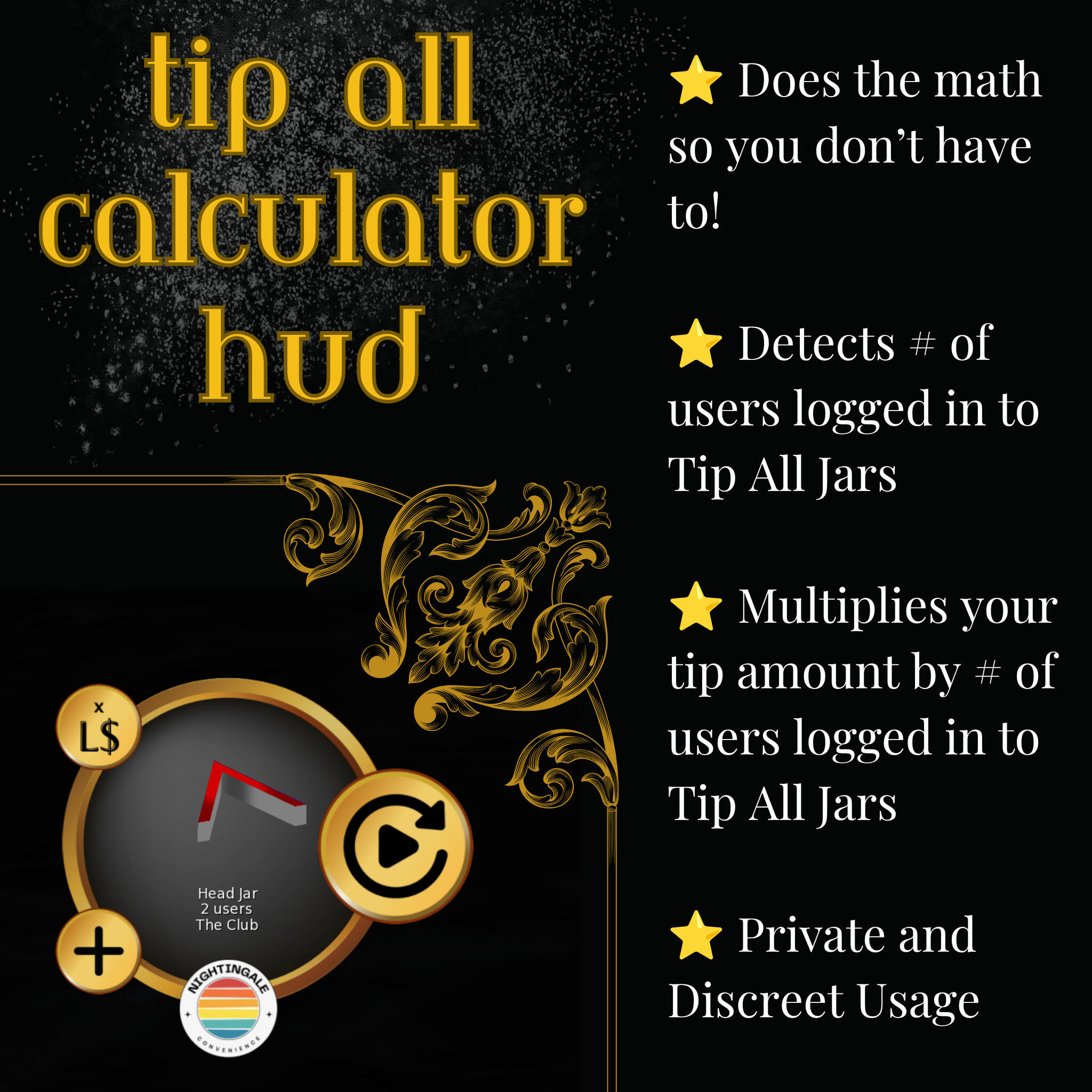
For The Distinguished GuestLet the Tip All Calculator HUD do the math for you!It detects the number of users logged in to tip all jars. Set it up once per tip jar, then it can do the math for you.Nobody has to know ;)Plug in the amount you want to tip the jar, then let the HUD figure out how many people are on stage and how much you should put in the tip all jar.Works specifically with milov tip jars.* Disclaimer - This is an UNOFFICIAL product. I am not affiliated with milo (observeur) nor endorsed by them in any way.In Beta: Contact Kalypso Nightingale if interested.
Group Discord Role Giver Kiosk
Features- Install both central server and kiosk on your own prim/mesh
- Install up to several kiosks per central server
- Have different central servers and kiosk combinations in the same region
- Optionally lock down access to specific group tagsSetup Steps1. Rez Central Server, modify look/feel/name if you like
2. Click on the Central Server, and choose "Server UUID"
2. Take note of the Server UUID
3. Rez Kiosks in the same region as Central Server, modify look/feel/name if you like
4. Set active owner group for Kiosks in edit menu
5. Configure kiosks by editing the object, viewing the object contents, and editing the Config notecard in each one---
NOTE: You must rez the server and plug in its UUID into the kiosk before you can use the system.
---
(OPTIONAL, but recommended) You may take out the contents of the central server and kiosk and put them in your own prim/mesh!
---Discord Prerequisites- Must own a Discord server (aka guild)
- Must install application to server
- Must place "[NC] SL Group - Role Giver" Role on Discord above the role to assign (in Server Settings > People > Roles)

Thirsty Plant Finder HUD (Works with Potted)
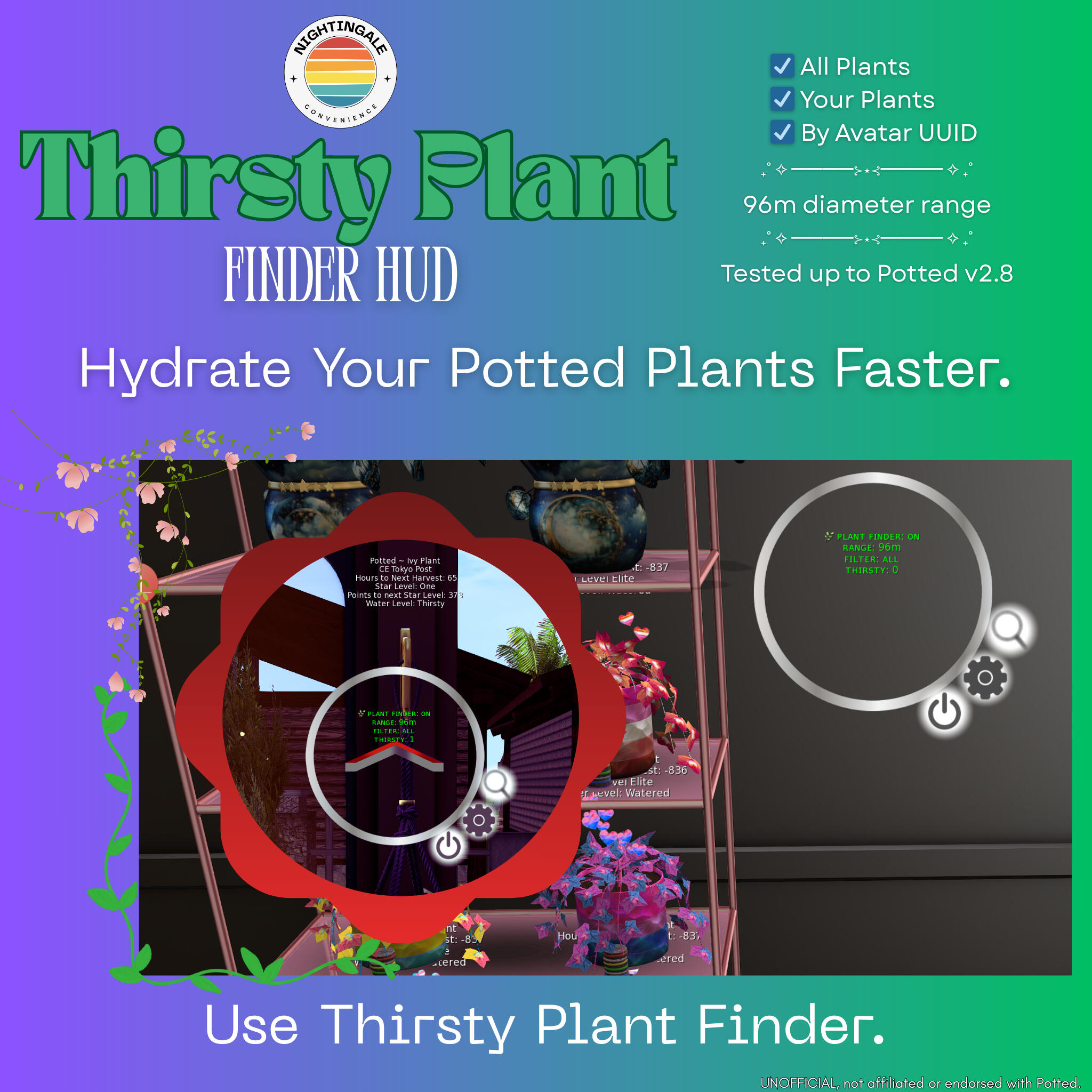
Welcome to the Thirsty Plant Finder HUD!This handy tool helps you locate nearby thirsty plants that need watering, pointing you in the right direction so you never miss a thirsty plant again.Three filter options are available:ALL - The HUD will find thirsty plants regardless of who owns them. This is the default setting.MINE - The HUD will only find thirsty plants that belong to you.UUID - The HUD will only find thirsty plants belonging to a specific person. Selecting this option will open a text box prompting you to enter the UUID of the avatar whose plants you want to track. The HUD will validate the UUID and confirm the avatar's name before applying the filter.* Disclaimer - This is an UNOFFICIAL product. I am not affiliated with Potted nor endorsed by them in any way.
Entertainer's Friend
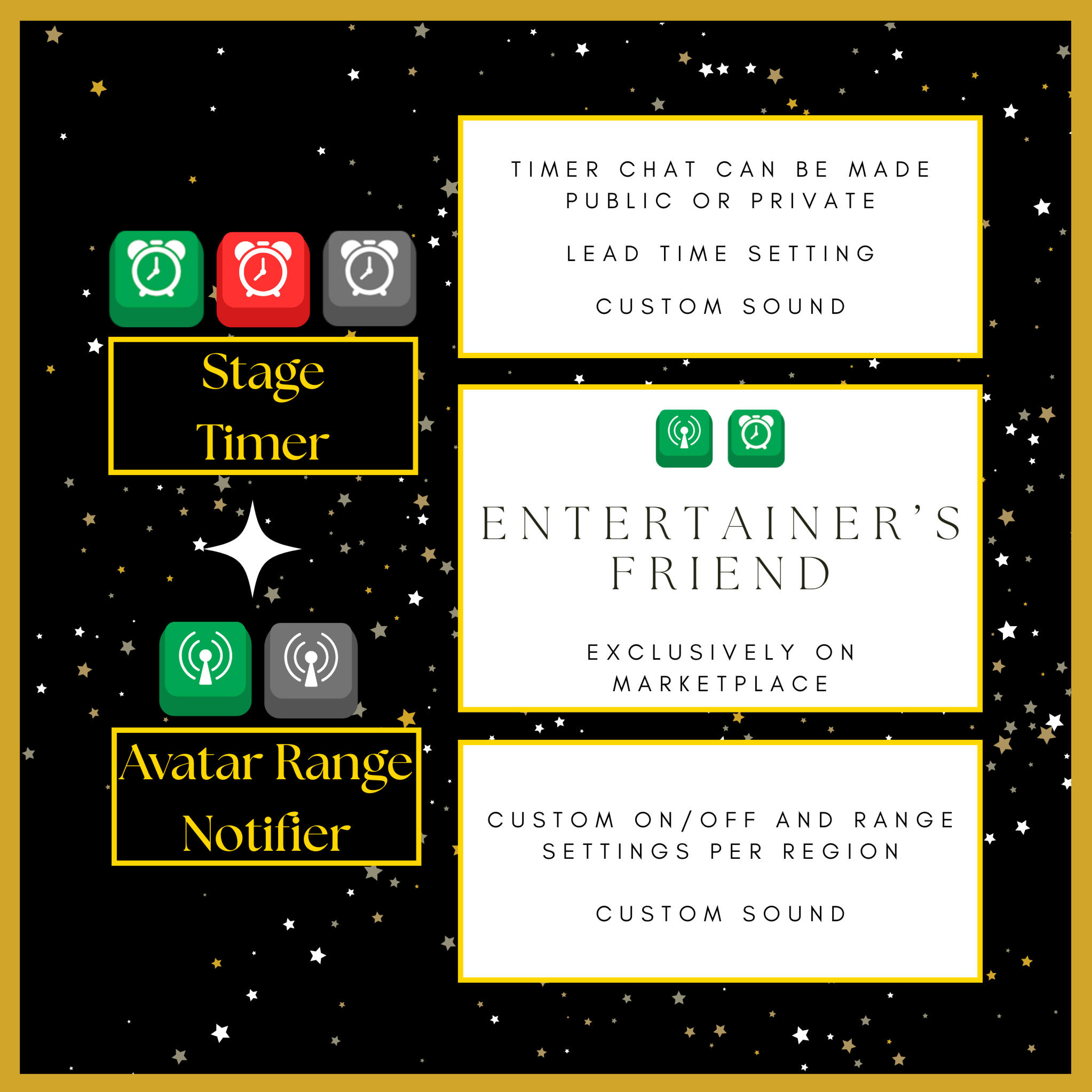
Are you alt-tabbing back and forth, and wondering if someone new arrived in your chat range? Say no more!This HUD plays a customizable sound whenever someone new enters the set range in the regions you set it to. It also sends you a private message in local with who just entered the range and how far away they are.The best part about this HUD is that you can set and forget -- only get notified in regions you care for!This stage timer has a customizable sound and you can set it to post updates on local chat or private to you. You also have the default option of having an extra countdown for you to prepare before you begin your service.For a more robust Entertainer's experience, purchase Entertainer's Accountant which comes with Entertainer's Friend!
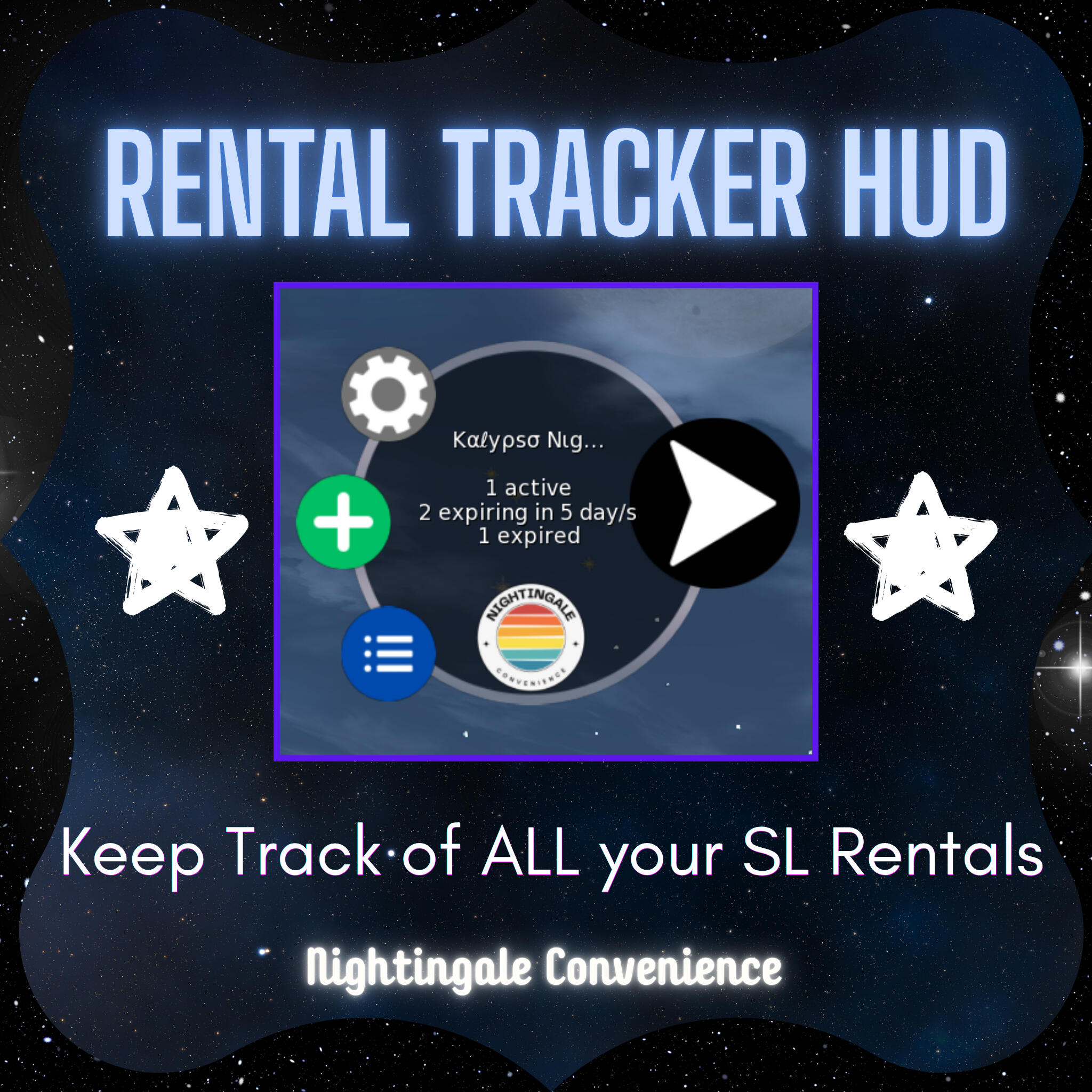
Rental Tracker HUD
★ Track your SL Adboard and Property Rentals
☆ See how many days left you have on your rentals
★ Teleport to your rentals directly
☆ Know which rentals are about to expire----------------------------When to Put On/Use:- Whenever you get a new rental
- Whenever you extend an existing rental
- Whenever you want to check on the status of your rentalsYou do not need to keep it on all the time!Prerequisite: Must know how to get Object UUIDs. (The README has instructions)----------------------------P.S. All the data is stored in the HUD, no external servers keeping your rental data. I cannot see any of it!
Entertainer's Accountant
The data-driven approach to getting paid on Second Life!This tool lets you keep track of how much you're getting tipped, who tipped you, and the approximate date/time of your session.The tool requires that you set up a Baserow database online, which has a free version. I can set up your database for you for a fee - starts at L$1500; please reach out to me.DISCLAIMERI do not keep your data in any way. You would own your database fully and I would not have access to it, with the exception of you providing me temporary access to set up or maintain your Baserow database.For a more plug and play Entertainer's experience, purchase Entertainer's Friend instead which does not come with the tracker.Works with milotips tip jars that post tips to local chat.* Disclaimer - This is an UNOFFICIAL product. I am not affiliated with milo (observeur) nor endorsed by them in any way.

Dice Roller

"Is RNGesus on your side today?"- You can use formulas! e.g., "/roll d20 + 2".
- You can set the output to be public or private.How to UseTo toggle between posting to local and privately to you, just click on the HUD icon.Activate the gesture included (/roll) so you can use the command "/roll"To roll, simply run the command "/roll " followed by the formulaExample Commands/roll d20
/roll 2d6
/roll d4 + 2
/roll d10 +3 -1
/roll 2d3 + 1d20
Object Dropper
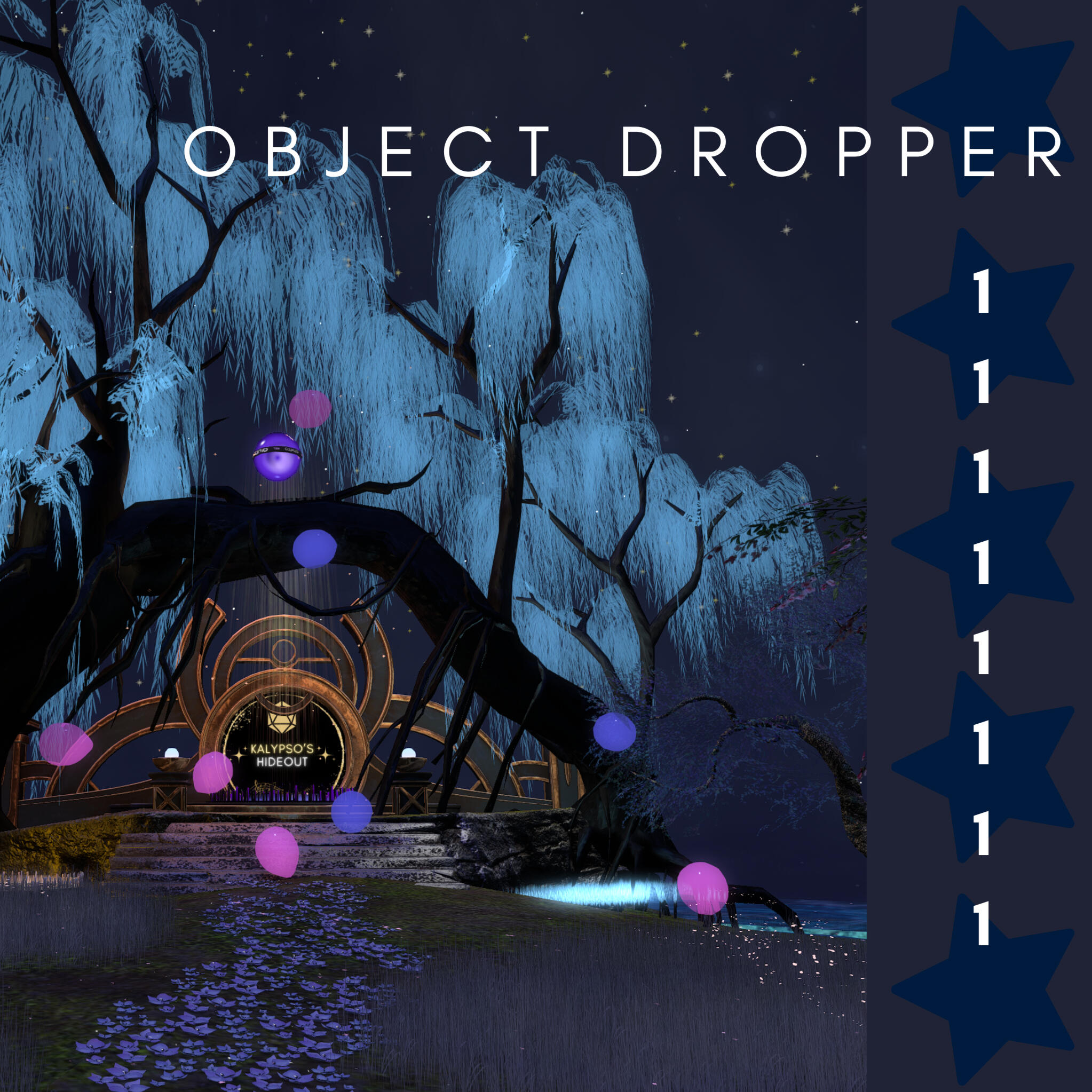
Would you like people to drop a balloon every time they say HAPPY BIRTHDAY in local, or drop fun mesh objects every time someone says 1 in local? This script lets you do the thing!You can also make it so only a specific group can trigger the dropper, just in case.

Monthly Gift Wheel
Check out the demo in-world!-------------------------------The Monthly Gift Wheel is a fully scripted, configurable prize wheel for Second Life venues, clubs, and events. Drop it on your parcel, load up your prizes, and your guests get one spin per month: automatically tracked, automatically rewarded. Everything is driven by a simple notecard config, including:- Prize names, folder names, and item lists for all 8 slices
- Fully customisable chat messages for spin, win, group check, and monthly limit
- Spin speed, duration, deceleration, and sound UUID
- Floating hover text above the wheel
- Owner-only admin panel with report, purge, stand toggle, and wheel reset-------------------------------Please note that setting up this wheel requires basic familiarity with Second Life building tools. It is designed to work out of the box once your prizes and config are in place, but you will need to be comfortable with the following:- Editing linked prims to access the wheel prim's contents and load your prizes
- Modifying or replacing textures on the wheel face and stand to match your venue
- Adjusting prim positions if you choose to modify or replace the stand
- Reading and editing a simple notecard config file inside the object
If you need support, please hit up kalypso.nightingale!
If you want to learn more about me, go to kalypso.life for more links.
© Kalypso Nightingale
Entertainer's Friend Setup Instructions
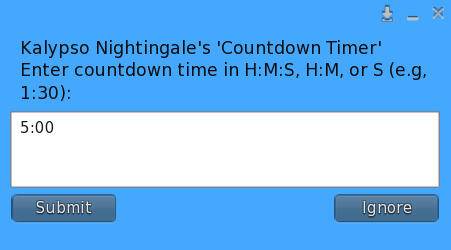
This HUD button can replace your phone timer for your SL countdown timer needs. You just need to know how long to run the countdown timer for.The format is Hours:Minutes:Seconds. You can do H:M:S, M:S, or just seconds. You can also say 90 seconds and it will translate to 1:30.
1. Click on the Timer HUD button

2. In the pop-up, enter the amount of time the timer should count down for. If there is a lead time, it will count down prior to the the countdown proper.
3. To stop the timer prematurely, just click on the Timer HUD button.
4. Once the alarm goes off, you can turn it off by clicking on the Timer HUD button.

A long touch on the HUD (approximately 0.8 seconds or more) will prompt an admin menu to change the alarm sound, lead time, and public setting.
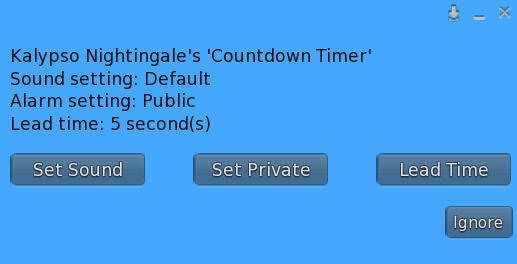
The lead time by default is 5 seconds. The lead time will give you a bit of time to prepare for your stage service.The public/private setting makes it so that the timer would post to local chat or just to you. By default, the timer posts to local chat.Note that the sound will only be heard by you, however.
Usage
After following the Accountant Setup, Database Setup, and Tip Jar Setup, all you have to do is click the Accountant button to start your session.You must have an active session in order to log tips.If you teleport, your session will end.The accountant auto-saves to the Baserow database every five minutes.

Accountant Setup
1. Edit Entertainer's Accountant, Edit Linked, and select the main Accountant button in the center. You should see a Config notecard.
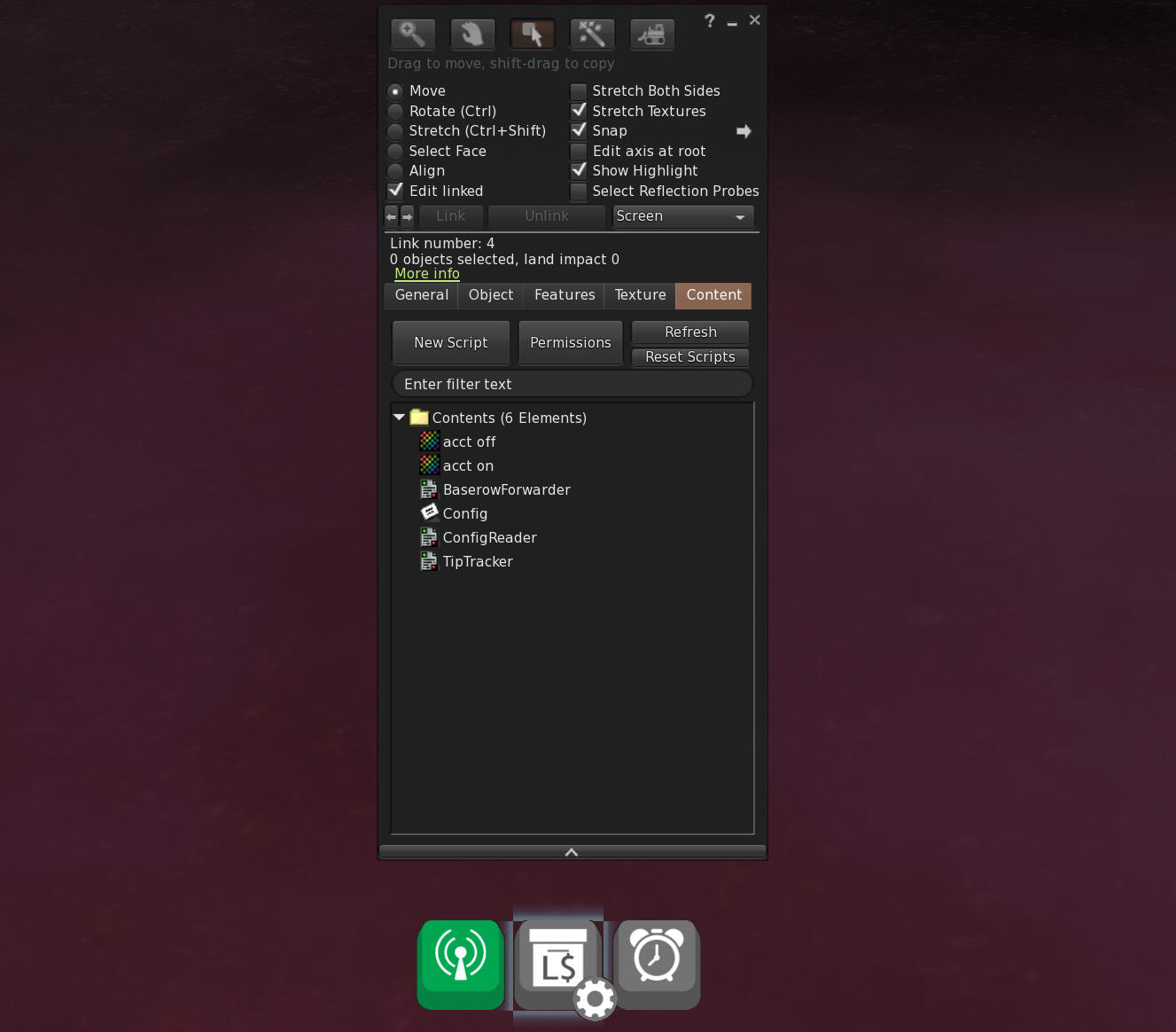
2. Edit the Config notecard with the values from the Database Setup.
Tip Jar Setup
For each parcel (e.g., sim/club), you need to supply the tip jar owner's avatar UUID.1. Right click > Edit one of the tip jars you are going to be using, and look for the Owner of the object.
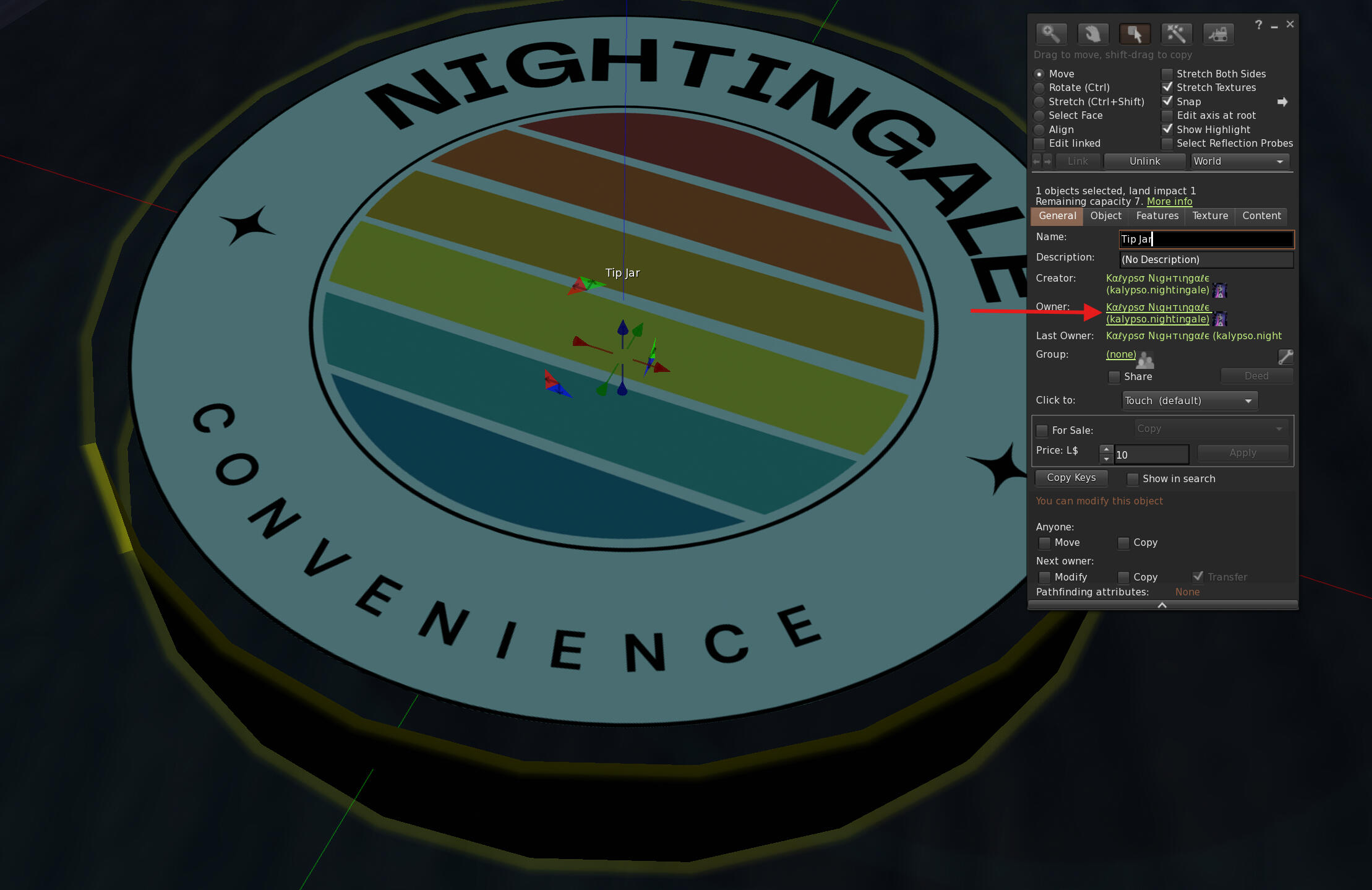
2. Open their profile and Copy the UUID.
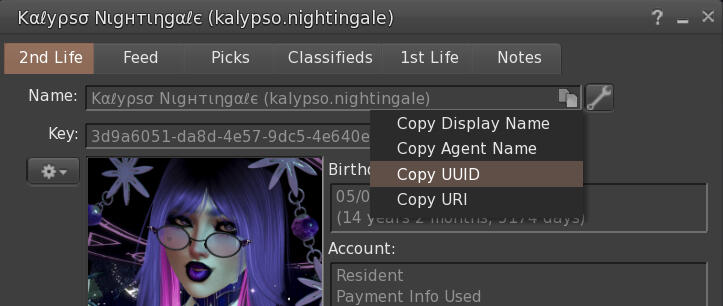
3. Click the gear at the lower right hand side of the Accountant button to add/delete jar owner UUIDs.
Database Setup
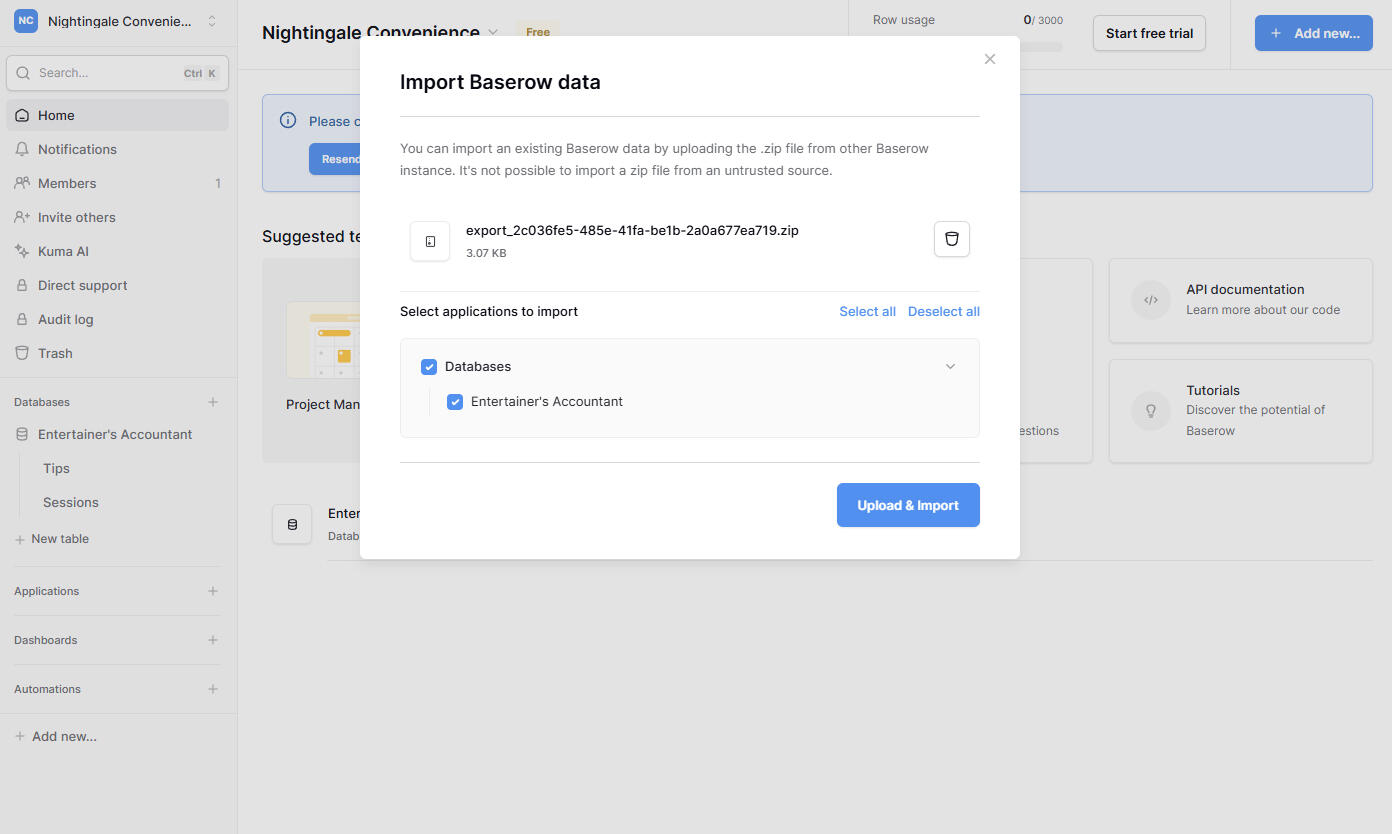
1. First, you need to create a Baserow.io account (or self-host if you are able to). Create a new workspace.2. Download this Template3. Upload the ZIP file to your Baserow workspace via "Add new..." > "Import data". Do not drag and drop; choose the ZIP file with the file picker instead.
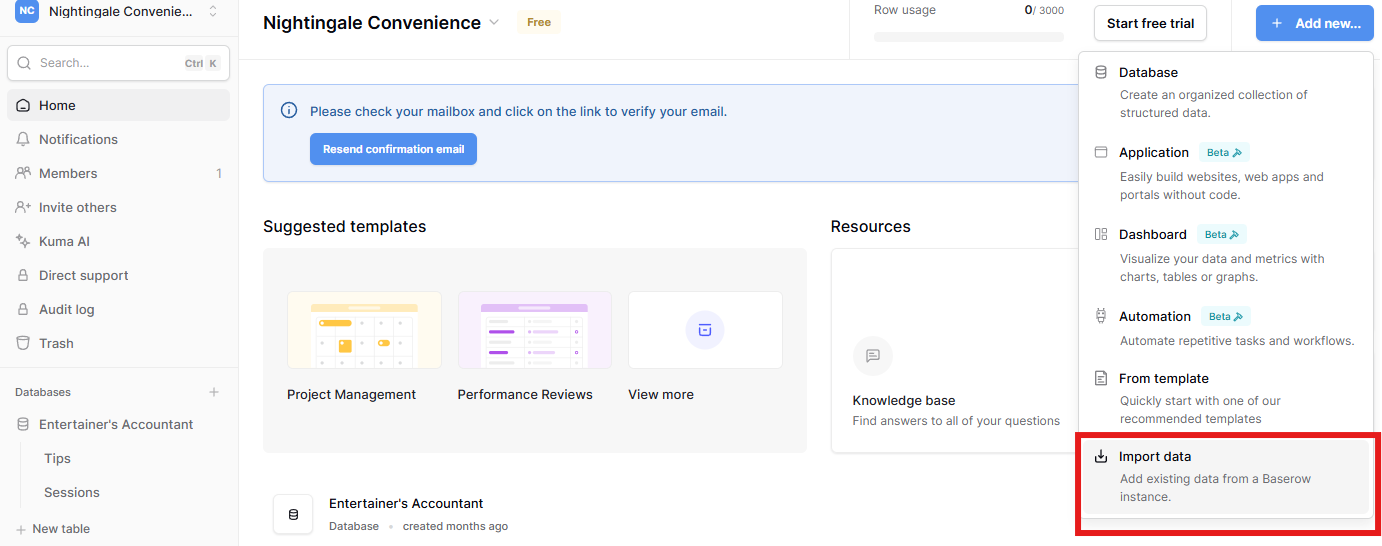
4. Import the Entertainer's Accountant database into your workspace.
5. Get the Tips and Sessions table IDs by clicking on the context menu on the right hand edge of each table and put those table IDs in the Config notecard.
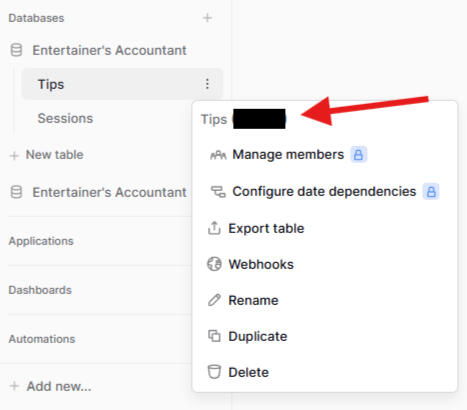
6. Create new Database Token under "My settings".
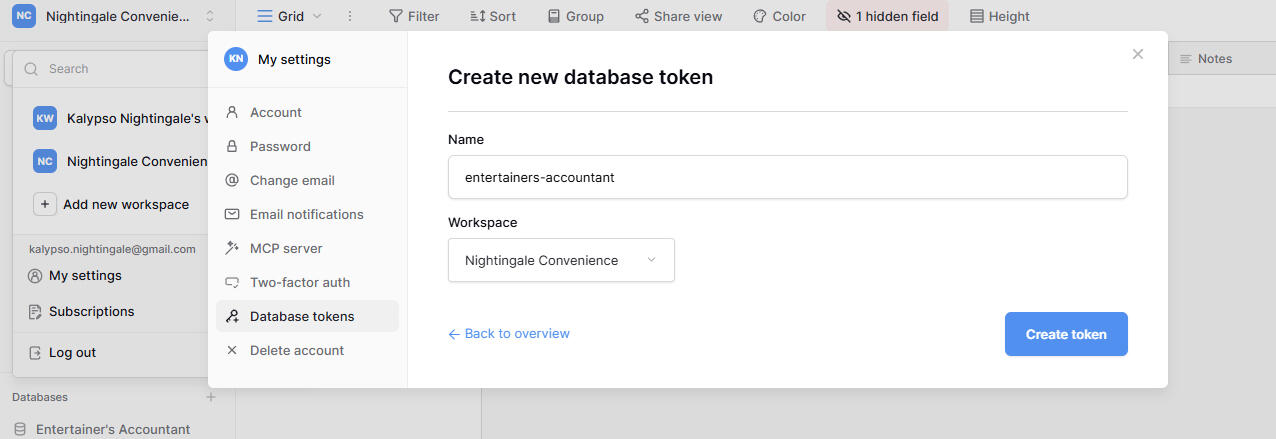
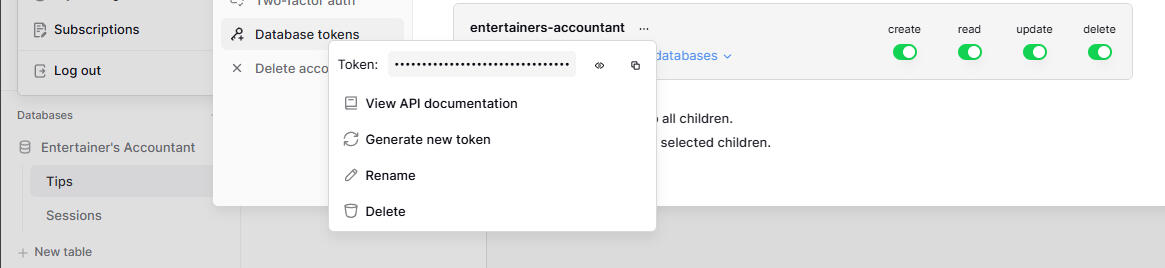
7. Copy your database token and put it in the Config notecard.
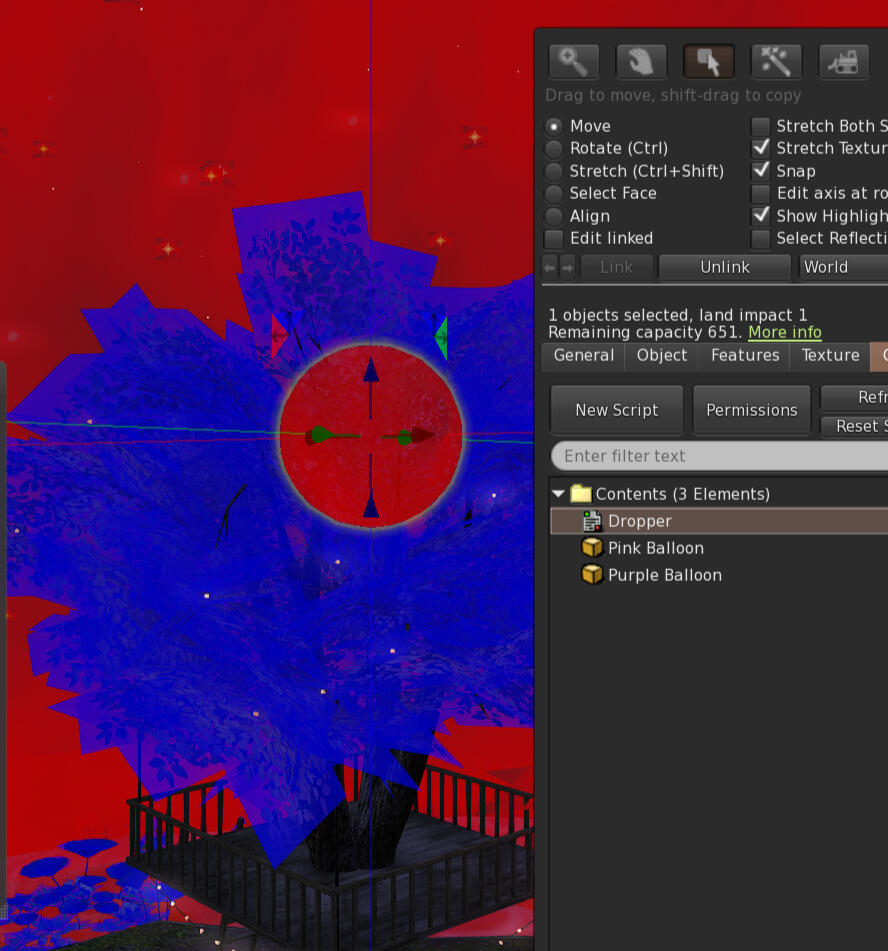
Object Dropper Setup Instructions
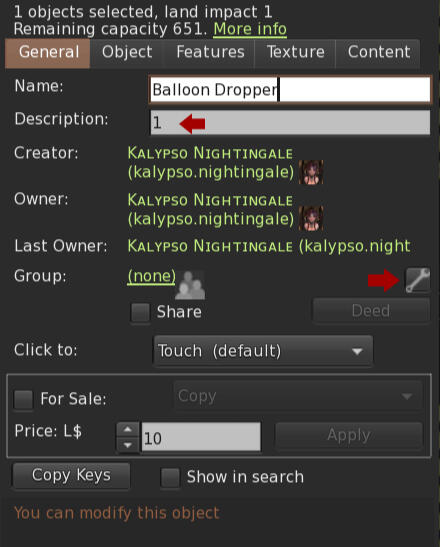
1. Create (rez) your dropper object. You can make the object transparent and be able to see it via Ctrl + Alt + T2. Change dropper object description to the line of text that should trigger the dropper[!] Every time you change the description, you need to either reset scripts for the object dropper (under Edit > Content) or re-rez it.3. Deed (or undeed) to group to set permissions (under Edit > General)Set a group for your dropper object If you want only members of that group to be able to use the dropperMake sure to check the group of your dropper object. The dropper object may have been auto-set to a group when you created it, etc.
4. Place script and objects to drop inside the dropper object (under Edit > Content).[!] Important: Objects to be dropped must be made Physical, Temporary, and Copyable, or else the dropper won't work properly and you might have to clean up the mess!
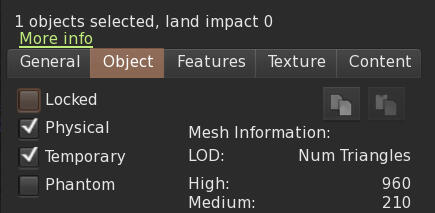
[!] Only the script and the objects to be dropped must be in the dropper object or else the other contents might end up being dropped as well!5. Enjoy!